 Dragon's Hoard
Kid's View: Setup
The Kid's View is a safe, read-only version of the dashboard designed specifically for your child. It allows them to see their hoard total, track their goals, and view their transaction history without being able to make any changes.
Setting up access is done entirely from the parent's account.
Setting Up a Child's Access
Follow these steps to create a secure login for your child.
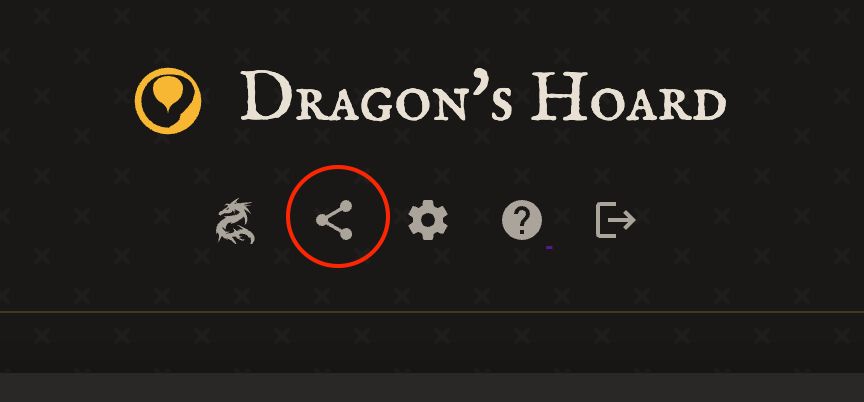
1. Open the Share Menu Log in to your parent account and click the Share icon in the header at the top-right of the dashboard.
2. Generate the Unique Link A "Share Read-Only View" menu will appear. If you haven't created a link before, the input field will be empty. Click the Regenerate Link button at the bottom. This creates a new, private, and unguessable link for your child's view.
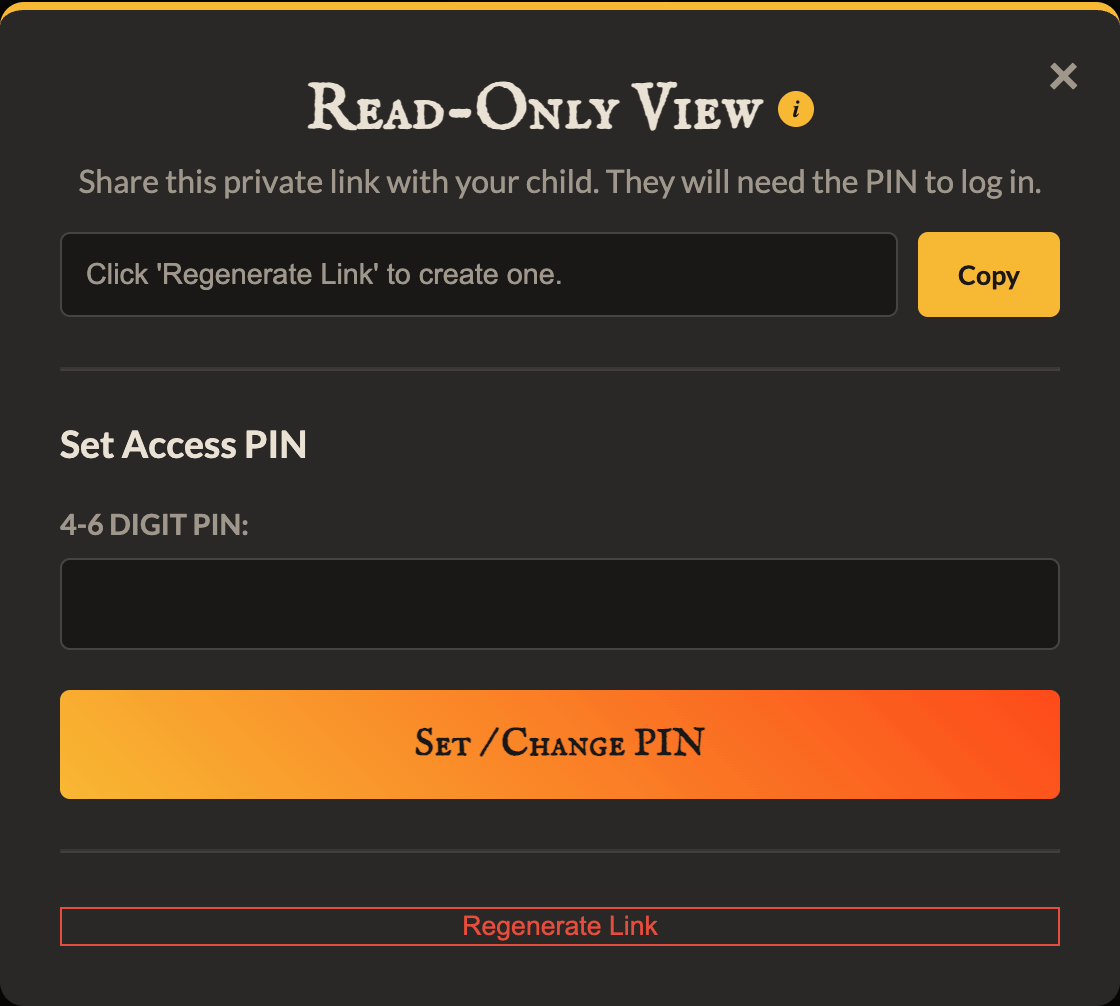
3. Set the PIN In the "Set Access PIN" section, enter a 4 to 6-digit PIN that your child can easily remember. This is the PIN they will use to log in. Click the "Set / Change PIN" button to save it.
4. Share the Link and PIN Click the "Copy" button to copy the unique link to your clipboard. Send this link to your child's device (e.g., via email or a messaging app). You must also tell them the PIN you just created.
5. First-Time Login On their device, your child should open the link. They will be prompted to enter their PIN on the keypad. After entering the correct PIN, they will be taken to their read-only dashboard.
Recommended: Add to Home Screen
For the best experience, we highly recommend adding the app to your child's device home screen. This makes it work just like a regular app.
After your child has logged in for the first time on their device's browser:
- On iPhone/iPad: Tap the Share button in the Safari browser, then scroll down and tap "Add to Home Screen".
- On Android: Tap the three-dot menu button in the Chrome browser, then tap "Install app" or "Add to Home screen".
The Dragon's Hoard icon will now appear on their home screen, giving them direct access to their dashboard.
Note for Older iPads: On some older iPads, the app may not remember the login the first time you open it from your home screen. If you are sent back to the parent login screen, don't worry. Simply follow these steps one time:
- Tap the "Have a child's link? Enter it here" link.
- Paste the unique share link again and go to the PIN screen.
This will permanently save the link to your home screen app, and you will only need to enter your PIN from then on.