 Dragon's Hoard
Managing Multiple Kids on a Shared Device
The Dragon's Hoard app is designed to work seamlessly on a shared family device, like an iPad. This guide explains how to set up and switch between different child profiles.
The Core Concept: One Link Per Hoard
It's important to understand that each parent account (each "hoard") has its own single, unique share link and PIN.
- If you manage money for multiple children in one combined parent account, they will all use the same link and PIN to view that single dashboard.
- If you have multiple parent accounts (e.g., one for each child, or one managed by Mom and another by Dad), this guide will show you how to allow a child to switch between these different hoards on one device.
Setting Up the First Child
To set up the first child on a device, please follow the detailed instructions in the Kid's View: Setup guide.
This involves generating the link and PIN from the first parent's account and having the child log in for the first time.
Adding a Second Child to the Same Device
Once the first child is set up on the device, you can easily add another.
-
First, the parent of the second child must log into their own parent account and generate a unique share link and PIN for their child.
-
On the shared device, open the Dragon's Hoard app, which should be showing the first child's dashboard.
-
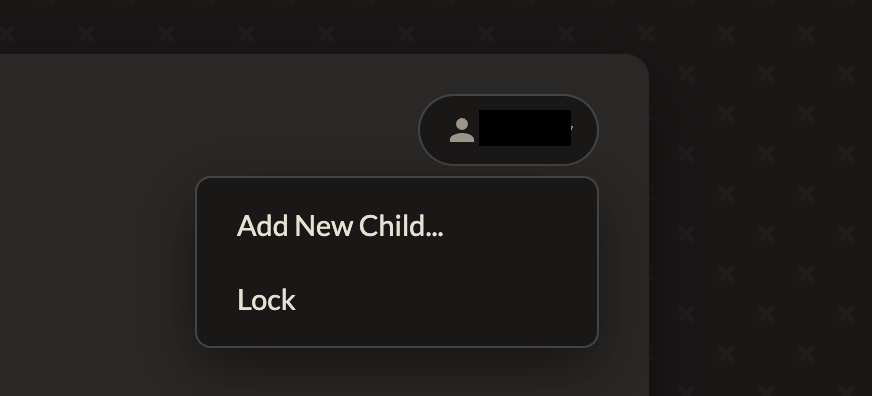
Tap the profile menu in the top-right corner (it shows "Viewing as [First Child's Name]").
-
Select "Add New Child..." from the menu.
-
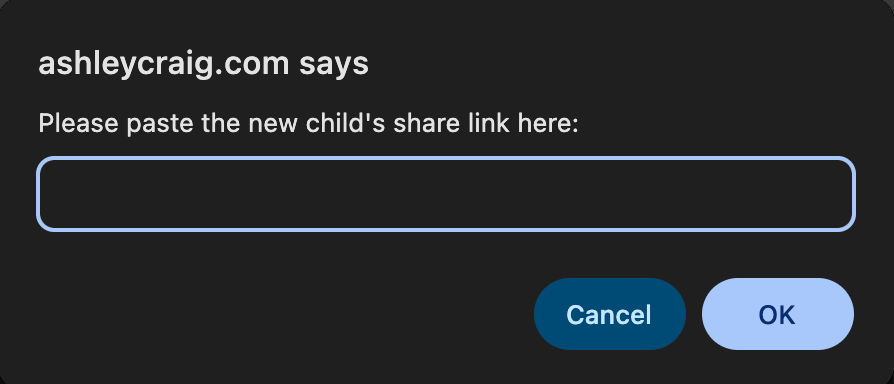
When prompted, paste the second child's unique share link.
-
The app will then switch to the PIN pad for the second child. They can now enter their PIN to log in. Their profile is now saved to the device.
Switching and Locking
Once multiple profiles are saved on a device, switching between them is easy.
- From the Dashboard: Open the Profile Menu and tap "Switch to [Child's Name]". You will be taken to their PIN pad.
- From the PIN Screen: If the app is locked and showing the wrong child's PIN screen, simply use the "Switch to..." links at the bottom of the page to get to the correct one.
When a child is finished, they should always open the profile menu and tap "Lock" to return to their PIN screen and keep their hoard private.