 Dragon's Hoard
Kid's View: Usage
Welcome to the Kid's View! This is your personal dashboard where you can see your hoard grow. This view is read-only, which means you can look at everything, but you can't make any changes. Let's explore what you can do.
Viewing Your Hoard
The main part of your dashboard is the tabbed section. You can tap on each tab to see different information about your savings:
- Transactions: See a list of all the times treasure was added or spent.
- Goals: Track your progress towards your savings goals.
- Interest: See how much interest your hoard has earned.
- Hoard: Get a fun, visual look at your treasure pile made of coins and gems.
- Progress: Watch a chart of your hoard's growth over time. It will also show your nearest goals.
Choosing Your Dragon
You can change the dragon that guards your hoard! Tap the Dragon button in the bottom-right corner of the dashboard to open the selection menu. Tap on any dragon to instantly update your view.
The Profile Menu
If you share a device with siblings, you can use the Profile Menu to switch between accounts.
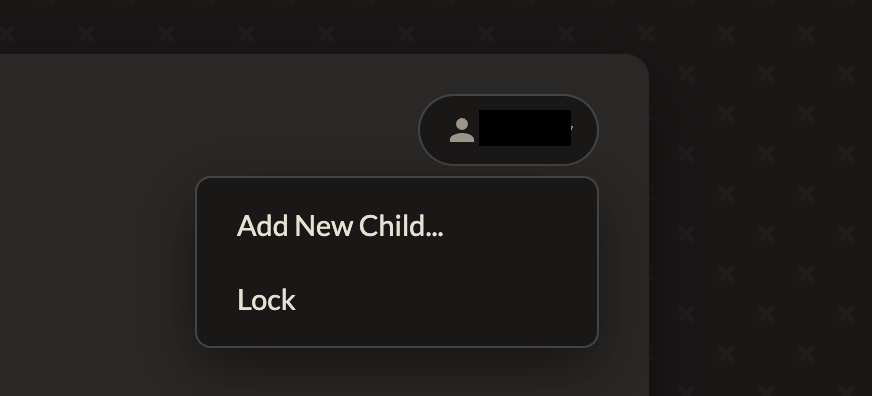
In the top-right corner of the dashboard, you'll see a profile icon with your name. Tapping this opens the Profile Menu.
Switching Profiles
You can easily switch to a sibling's profile if they have already been added to the device.
- Tap the profile icon to open the menu.
- Tap on the link that says "Switch to [Sibling's Name]".
- You will be taken to their PIN pad, where they can enter their own PIN to log in.
Tip: If you open the app and it's already showing the PIN screen for someone else, you can use the "Switch to..." links at the bottom of that screen to get to your own PIN pad.
Adding a New Child to the Device
If your sibling wants to use the app on this device for the first time, you can add their profile.
- First, your parent must generate a unique share link for your sibling from their parent account.
- Open the Profile Menu and tap "Add New Child...".
- A box will pop up asking for the link. Paste the full, unique share link from your parent and click OK.
- You will be taken to the new child's PIN screen, where they can enter their PIN to log in for the first time. Their profile will now be saved on the device.
Locking Your View
When you are finished using the app, it's a good idea to lock your view to keep it private.
- Open the Profile Menu.
- Tap the "Lock" link.
This will immediately and securely take you back to your personal PIN entry screen. Your profile will remain saved on the device for the next time you want to log in.